


Aydınlatma metni yükleniyor…
There is no single “best” web design program. The right tool depends on whether you need to design an interface, build an interactive prototype, write code, prepare visual assets, manage content or publish a site through a visual builder. Professional workflows often combine several tools rather than relying on one application.
Figma, for example, can define an interface and user flow; Visual Studio Code can turn an approved design into code; Chrome DevTools can then help inspect responsive behaviour and technical problems. WordPress and Webflow belong to a different category because they also provide content-management or publishing capabilities.
Quick Answer: Which Tool Fits Which Task?
| Task | Relevant tools | Code required? | Main limitation |
|---|---|---|---|
| UI/UX and prototyping | Figma, Penpot | No | A prototype is not a functioning website |
| Code-based development | Visual Studio Code | Yes | Requires development knowledge |
| Browser testing and inspection | Chrome DevTools | Partly | It inspects and tests; it is not a production platform |
| Block-based content management | WordPress Site Editor | Not for basic use | Theme, plugin, security and maintenance work remains |
| Visual site building and publishing | Webflow | Not for basic use | Platform constraints and portability need review |
| Raster image editing | Adobe Photoshop | No | Does not replace page structure or production code |
| Vectors, icons and illustration | Adobe Illustrator, Inkscape | No | Not a web-development environment by itself |
Do not base the decision only on whether a free plan exists. Ownership, collaboration, export, accessibility, performance, integration and maintenance are equally important.
Is Web Design Software the Same as a Website Builder?
No. The broad phrase “web design software” covers several product categories:
- Interface and prototyping tools define layouts, components and user flows.
- Code editors work with HTML, CSS, JavaScript and project files.
- Content management systems let authorised users manage pages and content.
- Website builders may combine a visual editor, hosting and publishing.
- Graphics applications prepare photos, icons and illustrations.
- Testing tools inspect responsive behaviour, errors, requests and performance.
A finished visual screen does not prove that forms, content management, security, search access and long-term maintenance have been implemented.
Figma for UI/UX, Prototypes and Feedback
Figma is a browser-based environment for designing interfaces, building component systems and creating interactive flows. Its official guide describes prototyping as a way to preview interactions and user journeys, share and iterate on ideas, collect feedback and present work to stakeholders. (Figma prototyping guide)
It is particularly useful when designers, developers and stakeholders need to comment on the same work. A Figma prototype is not the production site, however. Functional forms, content management, security and real browser behaviour require separate development and testing.
Penpot as an Open-Source-Oriented Alternative
Penpot is an option for teams that prefer an open-source approach to interface design and prototyping. File governance, collaboration, deployment and compatibility with the wider technology environment may influence the choice. Open source does not remove hosting, updates, backups or access-management responsibilities.
Visual Studio Code for Code-Based Development
Visual Studio Code is a code editor used for source editing, project search, source control, debugging, testing and extensions. Its official overview documents built-in Git, IntelliSense, debugging and testing capabilities. (Visual Studio Code overview)
Code-based development provides greater control for original interfaces, custom functions and integrations. It also brings responsibility for project structure, browser compatibility, security, testing and deployment. VS Code is not a website builder or hosting service.
Chrome DevTools for Responsive and Technical Inspection
Browser developer tools can inspect CSS, JavaScript errors, network requests and behaviour across viewport sizes. They are valuable for checking design decisions under real browser conditions.
A narrow viewport preview is not a complete mobile test. Keyboard use, focus order, form errors, overflow, real-device conditions and performance require additional checks. DevTools is a quality-control layer, not a substitute for user research or a complete testing process.
WordPress Site Editor for Block-Based Site Management
With a compatible block theme, WordPress Site Editor can manage headers, footers, templates, pages and global styles through blocks. WordPress documentation identifies navigation, styles, pages, templates and patterns among the areas available in the editor. (WordPress Site Editor documentation)
This may suit corporate sites whose content teams need page-management access. Theme and plugin quality, security, updates, caching, backups and custom integrations still need governance. Selecting a CMS does not automatically satisfy every design and technical requirement.
Webflow for Visual Building and Publishing
Visual builders such as Webflow combine design and publishing, offering a quicker starting point for teams that want to work with limited or no code. They may fit marketing pages and relatively contained content structures.
Review multilingual requirements, user roles, code and data export, integrations, hosting dependency, continuing subscription costs and future migration. Ease of editing is only one part of the decision.
Where Do Photoshop, Illustrator and Inkscape Fit?
Photoshop supports raster image editing, while Illustrator and Inkscape support vectors, icons and illustrations. They can prepare logos, backgrounds, product images and scalable graphics. Our guide to SVG explains where scalable vector graphics fit.
A static page image created in a graphics application does not provide responsive layout, accessible HTML, functional forms or a sustainable content model. Assets must be exported in appropriate formats and implemented within the actual site.
Is Dreamweaver Still Relevant?
Dreamweaver may still have a role in existing projects for people who want visual editing and direct HTML/CSS work in one environment. A new workflow should nevertheless compare collaboration, source control, modern development tooling and compatibility with the project technology. Historical popularity is not proof of present-day suitability.
Why Are Fireworks and Flash No Longer Recommended?
The old article presented Adobe Fireworks and Flash as current options. That is no longer accurate. Adobe's support matrix records the end of core support for Fireworks 12 on 7 May 2013 and extended support on 7 May 2015; Adobe also lists Flash Player among discontinued products. (Adobe product support periods)
You may encounter these applications when opening legacy files, but a new workflow should not be based on unsupported technology. Animation choices should be evaluated against current web standards, accessibility, performance and browser support.
Example Toolsets by User Type
- Beginner: Figma or Penpot for layout and prototypes, VS Code while learning HTML/CSS, and browser developer tools for inspection.
- UI/UX designer: Figma or Penpot, supported by Photoshop, Illustrator or Inkscape, plus documented components and states for handoff.
- Frontend developer: VS Code, Git-based source control, browser developer tools and testing tools appropriate to the technology stack.
- Content team: a CMS selected around permissions, templates and publishing workflows, with design-system boundaries.
- Small business: a manageable builder for limited scope; professional technical assessment when custom functions, integrations or data ownership matter.
- Enterprise team: a documented workflow spanning the design system, code repository, testing, content management, permissions, integrations and monitoring.
An Eight-Question Selection Matrix
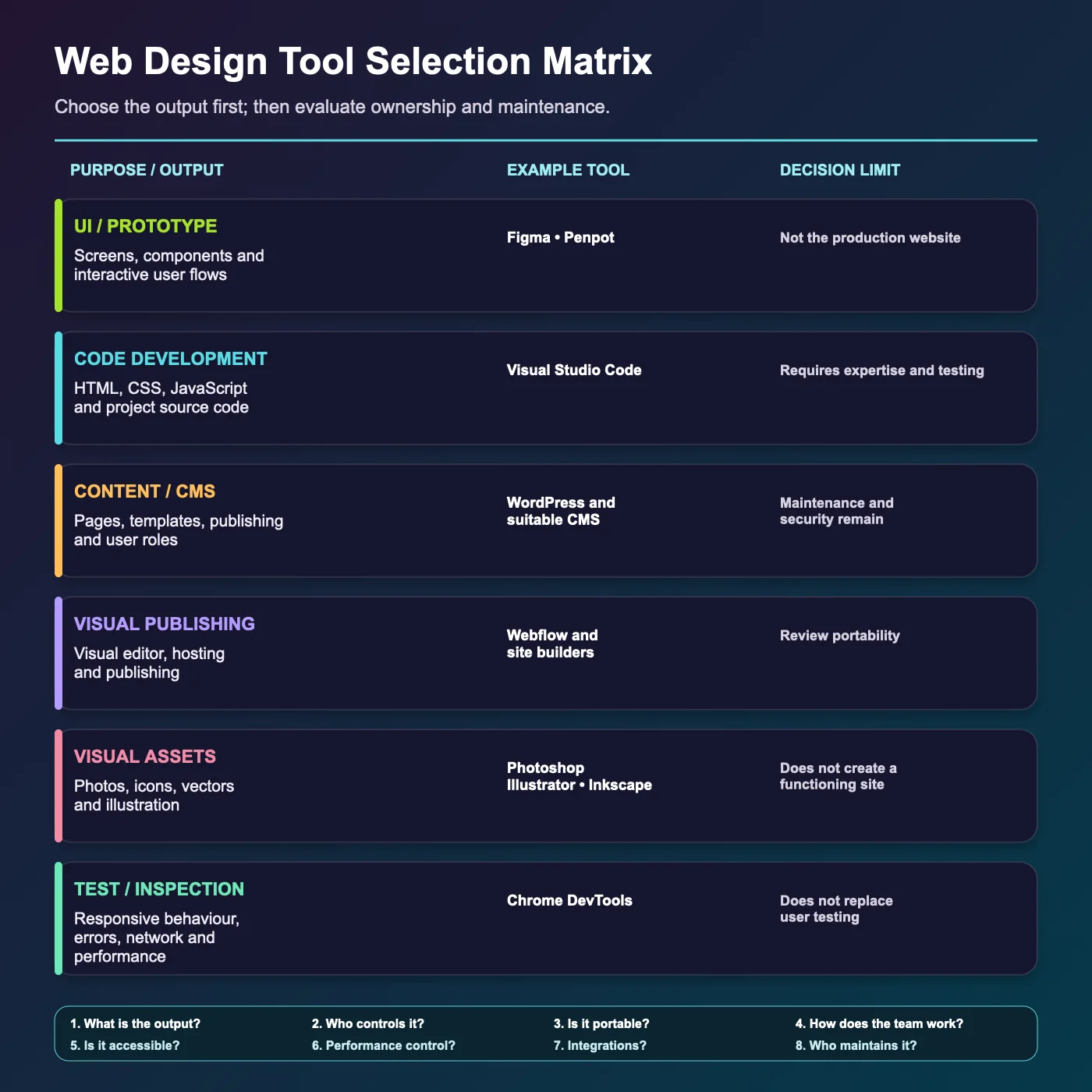
- Output: Does it produce a prototype, source code or a published site?
- Ownership: Who controls the design, code, content and accounts?
- Portability: Can files, data and code move elsewhere?
- Collaboration: How do design, content, development and approval roles work?
- Accessibility: Can the team control semantics, keyboard use and alternative text?
- Performance: How much control exists over asset size, code and optimisation?
- Integration: How will forms, CRM, payments, languages and business systems connect?
- Maintenance: Who handles updates, security, backups and support?
Before choosing the tools, define page types, content, functions, integrations and responsibilities in a website requirements document.
Can Software Replace a Professional Web Design Process?
Tool selection is only one production decision. A professional website combines audience and content planning, information architecture, user experience, visual systems, responsive behaviour, accessibility, development, security, technical SEO, testing, launch and maintenance.
A simple brochure page may be built with an off-the-shelf tool. When a project requires custom user journeys, multilingual content, permissions, integrations or long-term development, the scope of a professional web design service matters more than a list of applications.
Conclusion
The best web design software is the toolset that produces the intended output with clear ownership and maintenance. Separate interface design, prototyping, code, content management, graphics and testing first. Then compare ownership, portability, accessibility, performance, integrations and ongoing responsibility.