


Aydınlatma metni yükleniyor…
In role-based software, a permission screen is more than a technical settings page where administrators select checkboxes. It is the visible expression of the business rules that determine which data each user can see, which actions they can perform and where their authority ends. When the screen is poorly designed, users cannot understand the consequences of a permission, administrators may grant broader access than intended, and operational teams often discover problems only after a task fails.
A clear permission screen must answer more than “Is this user an administrator?” Which companies, dealers, warehouses or customer records can the user access? Can they only view those records, or can they create, edit, approve and export them? Do amount, date, location or document-status limits apply? Answering these questions turns role-based access from a technical feature into a manageable operating model.
What does role-based access mean to the user?
In role-based access control, permissions are assigned to roles representing job functions rather than distributed separately to every individual. Users are then assigned the appropriate roles. The NIST definition of RBAC describes access decisions in terms of roles and the operations they are permitted to perform on resources.
End users, however, rarely think in terms such as “RBAC”, “policy” or “scope”. They think about their daily responsibilities. A sales representative needs access to their customers, a warehouse supervisor needs movements for the warehouse they manage, and a finance manager may need account data for selected companies. The interface should therefore connect permissions to recognisable work rather than expose the underlying technical model.
Showing only “Sales Role” is not enough. The screen should include the role’s purpose, intended user group and practical access outcome. For example: “Regional Sales Representative: Can view customers in the assigned region and create draft orders; cannot change price lists or approve orders.” That description is more useful than the role name alone.
Four questions every permission screen should answer
A well-designed permission screen lets decision-makers review access through four distinct layers. This prevents different types of risk from being hidden behind a single “full access” switch.
1. Who is the user, and what is their responsibility?
The first layer explains the relationship between the user and their roles. Show the primary role, any additional roles, the company or business unit in which the user works, and the validity period of the assignment. Temporary cover, project-based duties and supplier access should not look like permanent employment roles. Start and end dates make forgotten access easier to prevent.
2. Which data can the user see?
A role describes an action; data scope describes the records on which that action may be performed. “Can view orders” is incomplete. The interface should state whether the user can see only their own orders, their team’s orders, selected dealers or every order in the company. Company, branch, region, warehouse, customer group and sales channel should be presented as separate scopes when they affect access.
3. Which actions can the user perform?
Viewing, creating, editing, deleting, approving, cancelling, exporting and changing prices do not carry the same risk. Instead of compressing them into a broad “manage” permission, present them as verbs people use in their work. Dependencies should also be explained: “Can create an order; warehouse approval is required before creating a dispatch instruction.”
4. What are the limits and exceptions?
Permissions may depend on an amount, discount rate, inventory variance, working hours, device type or record status. A sales manager might approve orders up to a defined value, while larger orders are routed to the finance director. The screen should not merely say “Can approve”; it should show the limit, currency, next approver and exception path.
Turning technical permissions into business language
Design should begin with real work scenarios, not database permission codes. Labels such as “order.update” or “warehouse.stock.adjust” may help developers, but a business manager should see outcome-based descriptions such as “Can edit draft orders” and “Can record a stocktake variance”. Technical identifiers can remain available in an advanced view when administrators need them.
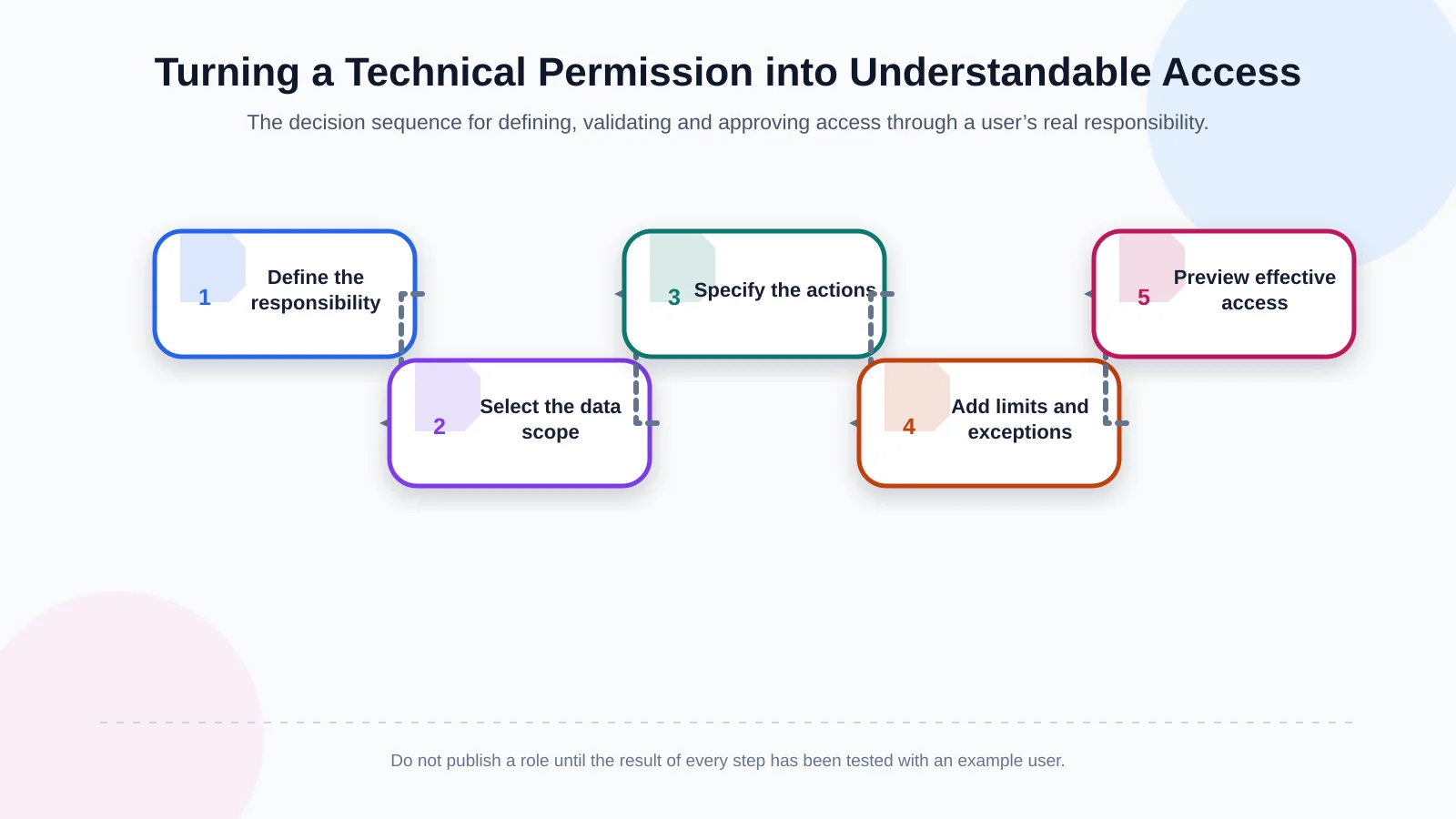
Start by defining the user’s responsibility. Identify the data scope and actions needed to complete it, then add limits and exceptions. Preview the resulting access through an example user before asking the business owner to approve it and recording the change. Kumsal Agency’s custom web development approach structures applications around actual business processes, user roles, data and integration requirements rather than forcing an organisation into a generic administration template.
What should appear in a permission summary?
A detailed permission matrix is necessary for administration, but placing hundreds of rows on the opening screen makes access difficult to interpret. A better structure provides a plain-English summary first and expandable detail underneath it. The summary should include:
- The role’s purpose and the responsibility it supports
- Accessible companies, branches, dealers, customers, warehouses or regions
- Permissions to view, create, edit, approve and export records
- Limits based on amount, rate, date, status or working time
- Who granted the role, when it was granted and when it expires
- Conflicting, inherited or exceptional permissions
An “effective access” view is particularly important. If a user receives permissions through several roles, the administrator must see the real outcome of that combination, not just each role definition in isolation. If the screen cannot answer “What can this person actually do?”, the likelihood of incorrect access increases.
How should permission types be presented to users?
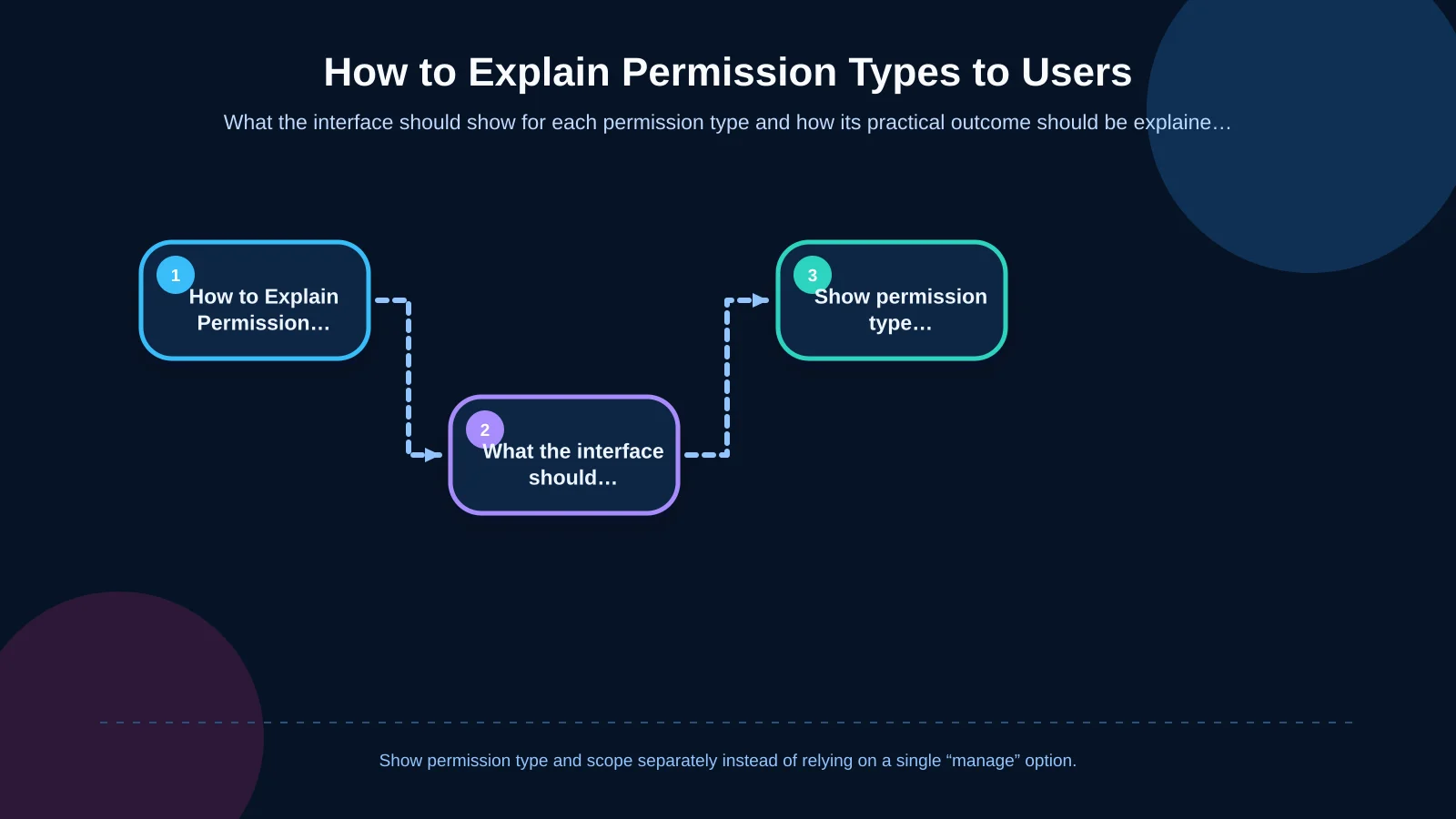
Not every permission should use the same interface control. A simple toggle can make conditional or scope-based access appear less complex than it is. The screen should present the permission type, its meaning in business language and its practical result together.
| Permission type | Interface presentation | Outcome explained to the user | Control |
|---|---|---|---|
| View | Scope label | Which records can the user see? | Record-level test |
| Action | Verb-based option | What can the user create or change? | Server-side validation |
| Conditional access | Limit and rule | Within which boundary can the user act? | Boundary scenario |
| Inherited permission | Source-role label | Where does the permission come from? | Effective-access preview |
| Temporary permission | Expiry date | How long does the access remain valid? | Automatic expiry |
Separate menu visibility from real action permissions
Hiding a menu is not a security control. A user may still attempt to reach a resource through a direct URL or API request. The OWASP Authorization Cheat Sheet recommends validating permissions on every request, applying least privilege and denying access by default. The interface can explain available options, but the server must enforce the decision.
Identify inherited and directly assigned permissions
A permission may originate from a primary role, a parent role, a user-specific exception or temporary delegation. Displaying all of them identically makes the effect of a change difficult to predict. Add a concise source label such as “From Sales Manager role”, “Within the Marmara Region scope” or “Temporary until 30 June”. Administrators should also be able to filter user-specific exceptions.
Use text as well as colour
Green, amber and red can support rapid scanning, but every state should also include text such as “Allowed”, “Conditional” or “Not allowed”. Dynamic alerts and save results must be available to assistive technologies. The W3C guidance on WCAG status messages explains how important results can be programmatically identified without moving focus. A saved permission, rejected change or detected conflict should never be communicated through colour alone.
Use explanations and previews for critical actions
Before saving a role change, summarise its operational effect: “12 users will gain access to customers in the Aegean Region; four users will be able to export orders.” This preview connects technical permission rows with business consequences and helps administrators catch an overly broad change.
High-risk permissions—such as deleting records, bulk exporting data, changing prices, updating credit limits or approving financial transactions—should include a short risk explanation. Depending on the risk, the workflow may require a second approver, a reason for the change or an expiry date. Controls should be proportionate rather than making every minor update follow the same heavy approval process.
When access is denied, “403” or “You cannot perform this action” is rarely sufficient. Provide a safe explanation and next step: “This order is outside your assigned region. If you need access, request a scope change from your regional manager.” The message should guide the user without revealing whether sensitive records exist.
Clarify the source of permissions in ERP-connected systems
In ERP-connected B2B portals, visible information may come from several systems. A customer record might originate in the ERP, a regional assignment in the CRM and a portal role in the web application. The permission screen should show the source of each relevant field and its latest synchronisation time. Otherwise, an administrator may try to edit a rule that is read-only in the portal or fail to understand why an ERP change has not appeared yet.
Data ownership must be decided before implementation. For every role, company code, warehouse scope and approval limit, define the system of record, expected synchronisation delay and behaviour when synchronisation fails. Rules should also state when inactive users lose access and whether the safest recent state or a default-deny state applies during an outage. Kumsal Agency’s enterprise resource planning services bring finance, sales, inventory, purchasing, production and operations into a shared management model aligned with real organisational processes.
Which scenarios should be used to test a permission screen?
Testing should cover more than whether the correct role can see a menu. For every critical function, prepare allowed, denied and boundary scenarios. Confirm that a sales representative can view their own customer and cannot view a customer in another region. Verify that a manager can approve an order below their limit and that an order above it reaches the correct higher authority.
- Is access denied by default for a new user with no role?
- When roles are combined, is effective access calculated correctly?
- Are company, dealer, warehouse and customer scopes enforced in lists and record details?
- Are direct URL and API requests blocked even when a menu is hidden?
- Is temporary access removed automatically when it expires?
- Does the audit log contain the old value, new value, actor, time and reason?
- Does the system show a safe, understandable state when ERP synchronisation is delayed?
Approval workflows should also be tested for delegation, exceeded limits, rejection, resubmission and integration failures—not only the ideal route. Negative and boundary tests reveal where interface explanations and server-side enforcement no longer agree.
How can sustainable role management be established?
A permission structure is not finished when the software goes live. New modules, organisational changes and staff handovers can gradually expand role scope. Assign a role owner, business approver and technical owner, and review critical roles at defined intervals. Report unused roles, expired delegations and person-specific exceptions separately.
A well-designed system records who changed access, why they changed it and when the change occurred. Audit history supports more than security reviews; it helps answer operational questions such as, “Why could this user view that invoice on that date?” Role copying can speed up administration, but copied scopes and critical permissions should be reconfirmed before saving.
A clear permission screen connects security with operations
Successful permission screens do not hide complex security rules; they explain those rules through user responsibilities. When role purpose, data scope, permitted actions, limits, exceptions and permission sources appear together, business managers can make better access decisions. Impact previews, helpful denial messages, accessible status notifications and reliable audit trails make that management sustainable.
Kumsal Agency treats role-based software as part of a wider system of business processes, user responsibilities, data security and ERP integration—not as an isolated settings screen. To create a clear permission model aligned with user roles, data scopes, action permissions and connected systems, discuss your project requirements with Kumsal Agency.