


Aydınlatma metni yükleniyor…
An admin panel is the part of a website or digital product that visitors rarely see, yet it directly shapes how an organisation works. Marketing teams update pages, editors prepare content, sales teams follow enquiries, customer service representatives review cases, and operations teams manage processes ranging from orders to integration errors. User-friendly admin panel design is therefore not simply about creating tidy screens. It is about building a sustainable management system in which different teams can complete daily tasks with fewer errors, less uncertainty and a shorter learning curve.
Ready-made dashboard templates can accelerate an early prototype, but screens selected without understanding the organisation’s roles, data and approval processes soon become complicated. Users encounter irrelevant fields, cannot tell what stage a record has reached, and begin tracking critical information in spreadsheets or messaging channels. A well-planned custom admin panel turns the interface into a clear reflection of the real workflow.
Why is a user-friendly admin panel important?
A corporate website may provide an excellent customer experience, but it will not remain sustainable if the content team cannot update it confidently. Likewise, customers may place e-commerce orders easily while the operations team struggles to see order status, stock availability or the cause of an error. Admin panel usability consequently affects content freshness, service speed, data quality and customer experience at the same time.
User-friendly does not mean reducing every operation to one click. Some actions need checks, approval or additional authentication. The real goal is to help users understand where they are, what they are doing, what comes next and whether the action succeeded. Accuracy matters as much as speed when an action is difficult to reverse, such as deleting a record, publishing content, changing a price or approving an order.
How do you design a user-friendly admin panel?
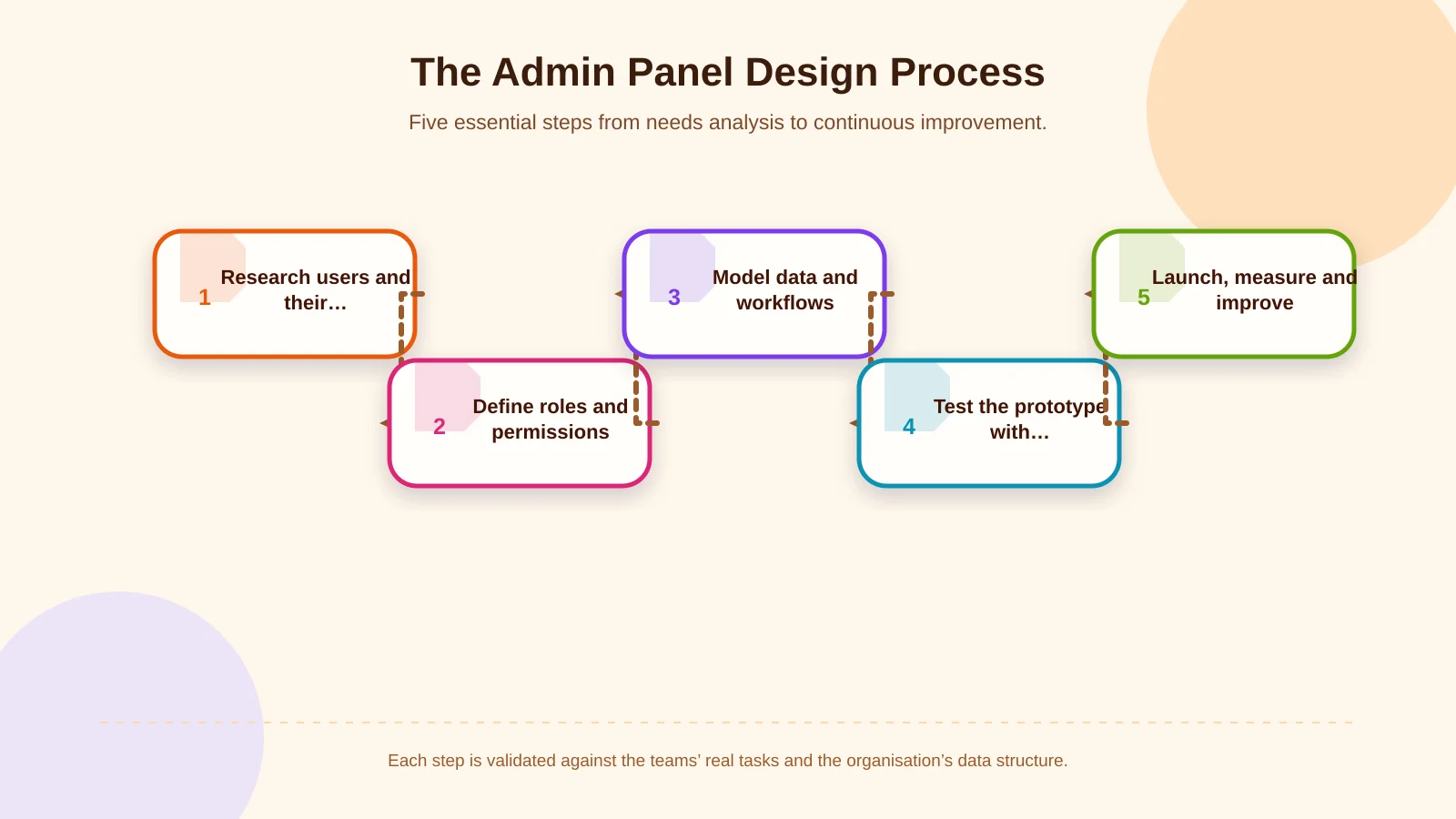
The process should begin with research rather than screen design. Identify who will use the system, which daily and periodic tasks they complete, where each piece of data originates and where the existing process breaks down. User interviews, current-interface reviews, support requests and transaction logs can all provide useful evidence. Replace broad requirements such as “manage content” with concrete tasks: an editor creates a draft, a brand manager reviews it, and an authorised user publishes it.
Next, map roles, the data model and permitted status transitions. Content types, required fields, categories, relationships, order or enquiry states and integration points should be considered as one connected model. Create user flows and low-fidelity prototypes for high-priority tasks, then test them with representative users. This exposes false assumptions before development becomes expensive. After implementation, complete usability, permission, security, performance and integration testing, then continue improving the system with evidence from live use.
Information architecture should reflect real tasks
An admin menu should not be a direct copy of the company organisation chart or its database tables. Users think in terms of work they need to complete, not technical module names. Clear sections such as “Content,” “Orders,” “Customer Requests” and “Awaiting Approval” are easier to understand than ambiguous abbreviations or developer terminology. Frequent tasks should remain visible, while rarely used configuration options should not crowd the main workspace.
List views need to foreground the information required for a decision. In an order list, the customer, date, total, payment status and shipment status may matter as much as the order number. Filters, sorting, saved views and bulk actions should be based on real scenarios. Search should also reflect how people work: users may search by customer name, record number or an external reference rather than an exact system value.
Clear fields and a safe publishing workflow
For corporate websites, one of the admin panel’s central responsibilities is enabling teams to manage content without breaking the brand’s design system. An unrestricted rich-text editor may appear flexible, but it can produce inconsistent headings, poor spacing and pages that fail on mobile devices. Purpose-specific fields for the title, summary, cover image, content blocks, SEO metadata and call to action offer safer flexibility. Field guidance, suggested character counts, image ratios and previews help editors make informed choices.
Statuses such as Draft, In Review, Approved, Scheduled and Published make collaboration visible. Version history, author and date information, change comparisons and restoration options support safer content operations. In multilingual systems, translation progress and missing fields should be clear. If product information is distributed across several channels, ownership must also be defined. The related PIM and product information management guide explains how product models, localisation and channel distribution can be planned.
Remove unnecessary effort from forms and data entry
Long forms are among the most common admin panel problems. For every field, ask why the data is needed, who uses it, how it will be validated and how it will remain current. The GOV.UK Service Manual recommends asking only for information genuinely required to deliver the service and dividing complex interactions into understandable parts. This is especially useful on mobile devices, in conditional forms and when helping users recover from errors. See the GOV.UK guidance on structuring forms for detailed principles.
Group related fields logically and distinguish required information from optional details. Do not ask users to re-enter data the system already knows. Offer sensible defaults and validate formats during entry without interrupting the task unnecessarily. An error message must explain which field has a problem, why it happened and how to correct it—not merely state that something went wrong. Autosave, explicit save states and a safe way to leave long processes reduce the risk of lost work.
Why are roles and permissions part of the design?
Role-based access is not only a technical security setting; it determines the interface each person encounters. A content editor may not need pricing rules, a customer service representative may not need system settings, and an external agency user should not necessarily see every customer record. Viewing, creating, editing, approving, exporting and deleting should be evaluated separately for each role. This reduces visual clutter while limiting the chance of an inappropriate action.
OWASP recommends granting only the minimum privileges required for a task, denying access by default and validating permission on every request. Hiding menu items is not sufficient: controls must also be enforced on the server at both record and action level. The OWASP Authorization Cheat Sheet provides a detailed framework for design and development teams.
Sensitive operations may require approval, delegation, time or value limits, and explicit exception rules. Users should be able to see whose approval is pending and why a record cannot progress. Permission changes and critical actions should be captured in an audit trail, while logs should be designed to avoid exposing sensitive data unnecessarily.
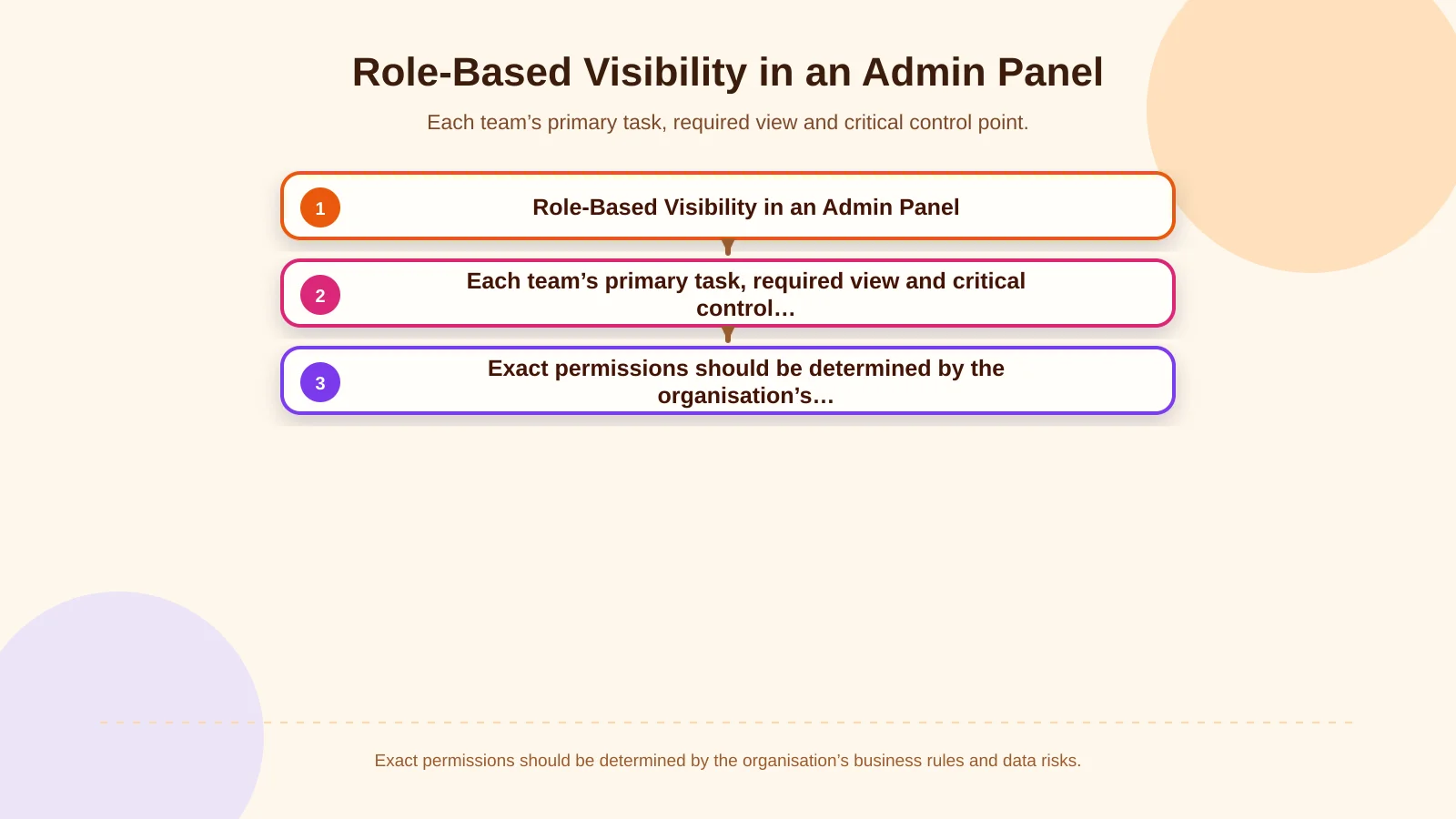
| Team | Primary task | Required view | Critical control |
|---|---|---|---|
| Content | Manage pages and publications | Draft, preview and version history | Publishing approval |
| Sales | Track enquiries and orders | Customer, status and price | Limits and exceptions |
| Customer service | Resolve customer requests | History, notes and service time | Personal data access |
| Operations | Monitor work and integrations | Queue, error and status | Retry and audit record |
Managing status, approval and exceptions in operational workflows
Operational screens should do more than list records. Each record needs a clear current status, owner, expected next action and any reason for delay or failure. When permitted transitions are defined for orders, support cases or content publishing, users cannot move a process forward with arbitrary values. Status names should use the team’s shared business language rather than raw technical messages.
Design exceptions as carefully as the standard path. Decide what happens when the ERP does not respond, a payment cannot be matched, a required document is missing or an approver is unavailable. The system should move the issue into a visible queue, notify the responsible team and support a safe retry. Silent failures and uncontrolled repetition can create duplicate records and inconsistent data. For complex approval models, the guide to B2B order approval workflows offers a useful view of authority, limits, delegation and exceptions.
How should ERP and third-party integrations appear in the panel?
Connections to ERP, CRM, payment, shipping, marketplace or email services should not be completely hidden from users. There is no need to expose every technical detail, but the data source, latest synchronisation time, transfer state and safe next action should be visible. Instead of showing only “Failed,” explain which order was not transferred, the general reason and what a retry may do.
Integration design must define the system of record, field mappings, update direction, duplicate-handling rules and the fallback when a connection is unavailable. When website form data feeds a sales process, Kumsal Agency’s website–CRM integration planning guide explores related decisions such as field ownership, duplicate resolution, exception queues and feedback to the source. Critical integrations should also include idempotent operations, timeout handling, controlled retries and detailed technical logs for support teams.
Accessibility, mobile use and clear feedback
An internal admin panel is not exempt from accessibility. Keyboard-operable controls, meaningful labels, visible focus states, sufficient colour contrast and status indicators that do not rely on colour alone help more people use the system safely. WCAG 2.2 includes practical criteria for labelling inputs, describing errors in text and providing checks or confirmation for important actions that change data.
Mobile support is also more than shrinking a desktop layout. For sales staff checking orders in the field or warehouse users reviewing records, priorities, touch targets and table behaviour may need to change. After an action, show an unambiguous success message. For longer tasks, communicate progress, background processing or waiting states. Users should never have to guess whether the system registered a button press.
Performance, security and testing must work together
Slow lists and delayed search can make an otherwise well-designed interface unusable. Plan pagination, server-side filtering and controlled exports for large datasets. Process images at suitable sizes, generate demanding reports in the background and notify users when results are ready. Performance targets should be tested with realistic data volumes, not empty demonstration accounts.
Security planning should cover strong authentication, session management, re-authentication for sensitive actions, record-level permission checks, secure file uploads and audit logging. Beyond functional checks, test the role matrix, integration failures, invalid data, concurrent updates and interrupted connections. Task-based sessions with real users can reveal completion rates, time on task, errors and where assistance is required.
Which metrics show whether the panel is successful?
Success should be measured through business outcomes rather than the number of screens or features. Useful indicators include completion time for priority tasks, invalid-record rates, approval delays, support volume, publishing lead time and resolution time for integration errors. Permission-related blockers and unused features should also be reviewed regularly.
Measurement should locate friction, not monitor employees. Interpret analytics alongside interviews, observation and support records, and avoid redesigning a process in response to one isolated metric. Small, regular improvements help the panel evolve with the organisation’s changing roles, products and workflows.
A custom approach to admin panel projects
A user-friendly management system requires research, information architecture, interface design and software architecture to develop together. Corporate websites may prioritise structured content flexibility; e-commerce platforms may focus on product and order operations; and custom web applications may depend on organisation-specific roles and business rules. The right solution comes from understanding users, data, integrations and exceptions—not multiplying generic dashboard screens.
Kumsal Agency plans custom web software and admin panel projects around user roles, real tasks and technical requirements. Content models, forms, approval flows, ERP connections, mobile use, performance, security and testing are treated as parts of one product system. To plan a custom admin panel that fits your content and operational processes and is easy for your teams to use, contact Kumsal Agency.